Start here
MaterialZ (MZ) builds assets from editable recipes. A recipe describes how an asset is made; the images and geometry used to display it are evaluated results. You can return to the recipe and change its construction later.
There are two related editors:
| Asset | What you author | Where you use it |
|---|---|---|
| Material | Patterns, colors and surface channels | Ground, paths, mesh surfaces and ordinary 2D tiles |
| Mesh | Shapes, transforms, repeated parts and material assignments | Buildings, trees, props and rendered 2D Iso parts |
A brick material is independent of the camera. A wall mesh uses that material and has dimensions. In 2D Iso, Eldiron renders the mesh into directional sprites. Selecting one of those sprites in the Tile Picker leads back to the mesh recipe that made it.
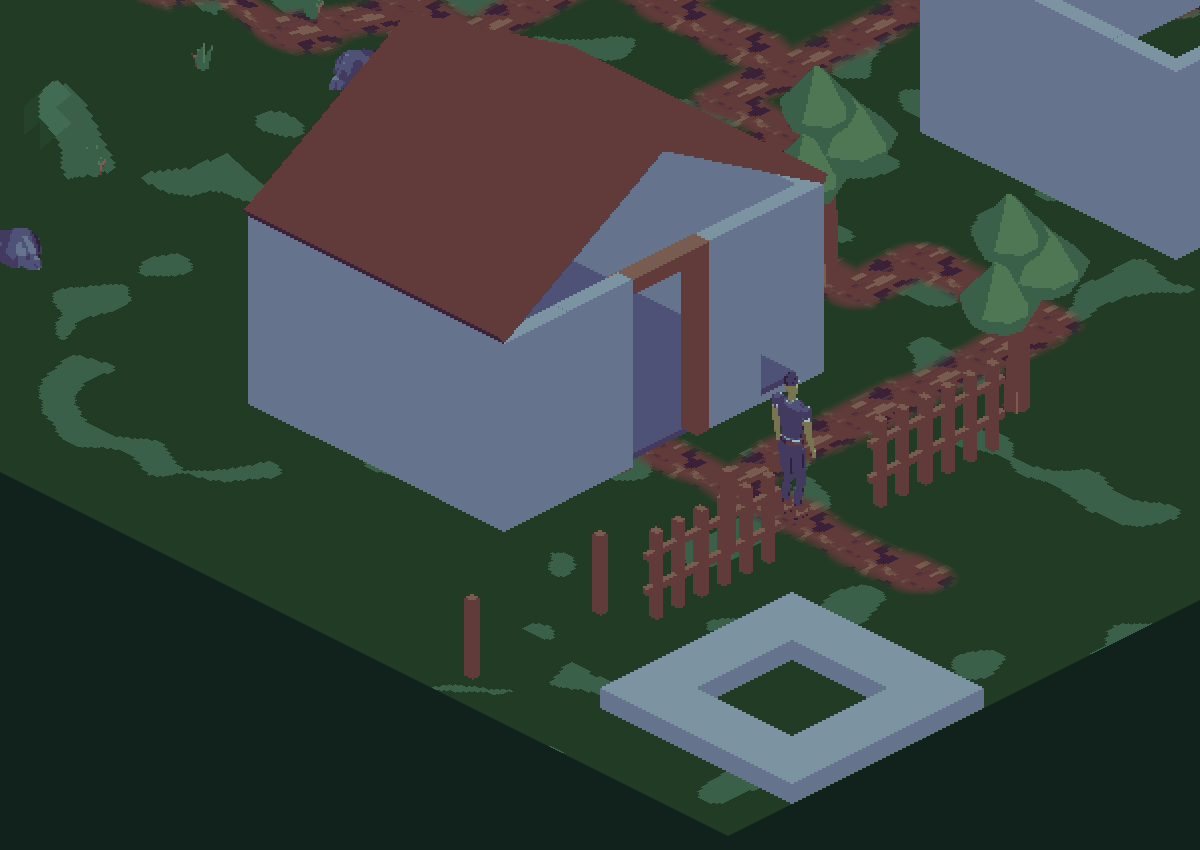
The recipe playground uses separate wall, corner, doorway, floor, roof, fence and tree assets. The house is assembled on the map.
A practical learning order
- Make and tune a material. Learn rows, outputs, palettes and coordinates.
- Create and edit a mesh part. Start with the recipe browser and inspect the construction.
- Publish useful controls. Bind dimensions to actual recipe inputs and derive dependent measurements.
- Define collision and walkable surfaces. Keep the visible shape and movement behavior in agreement.
- Build with connectors. Join reusable parts and keep connected placements aligned after recipe edits.
- Use the reference and troubleshooting guide when a result is unexpected.
Where assets live
The project stores the editable material and geometry recipes. Project materials appear in the Tile Picker, including materials referenced by mesh recipes. A mesh's material reference identifies that shared material; opening and editing it changes every asset that uses it. Inline PBR Material operations are different: their palette color, roughness and metallic values belong to that mesh recipe.
Selecting a mesh in the Tile Picker prepares it for placement and shows the compact sidebar. Edit mesh opens the full editor. Back to map returns to placement. You do not need to open the full editor for every placement.
The rendered tile is a cache of the source recipe. Recipe edits rebuild its artwork and update the scene. Keep authored source recipes and documentation in version control. Local test projects, bake outputs, review captures and build logs belong under the ignored generated/ directory.
Cameras and terrain
Materials and mesh recipes use the shared MZ evaluator. They are not tied to 2D Iso. Isometric sprite baking, connector placement and automatic placement footprints described here are the 2D Iso map workflow.
The preferred iso projection has X up-right and Z down-right. With the grid-following player mode, W/Up follows X+ and D/Right follows Z+. A mesh's local Y axis is vertical.
Smooth hills come from the shared terrain surface. Terrain materials, winding roads, paint and organic stamps can follow that surface. Building meshes retain their authored shape: a wall does not bend itself over a hill. Prepare a suitable building area and set placement heights for floors and upper parts.
Editable examples
The browser's built-in recipes are the tutorial examples. Creating one copies an editable MZ recipe into the project. Use Project in the browser to copy your own recipe independently.
The source repository contains the examples in creator/embedded/meshes/recipes/. The native playground builder is in creator/src/procedural_material/woodland_demo/recipe_playground.rs; its generated project stays outside git. See the example guide for the exact command.
Screenshots in this guide show Eldiron's native editor or scene rendering. They omit the AI header.