Adding Isometric Tiles from Images
Ordinary PNG tilesets and MZ recipes can both be used in a 2D Iso map. A pre-rendered PNG is already an isometric image: Eldiron places it at its anchor instead of projecting the diamond again. It needs no MZ recipe or mesh.
Try the Kenney example
Open File → Browse Examples… → Kenney Isometric Dungeon, or open
starters/projects/KenneyIsoDungeon.eldiron in a source checkout.
The example contains a stone courtyard, walls facing both axes, windows,
open doorways, tables, barrels, crates, and a character with eight-direction
walk and idle frames. The front walls are omitted to keep this cutaway room
visible. This is an original test layout using Kenney's supplied miniature
artwork, rather than an exact copy of the older orange Tiled sample.
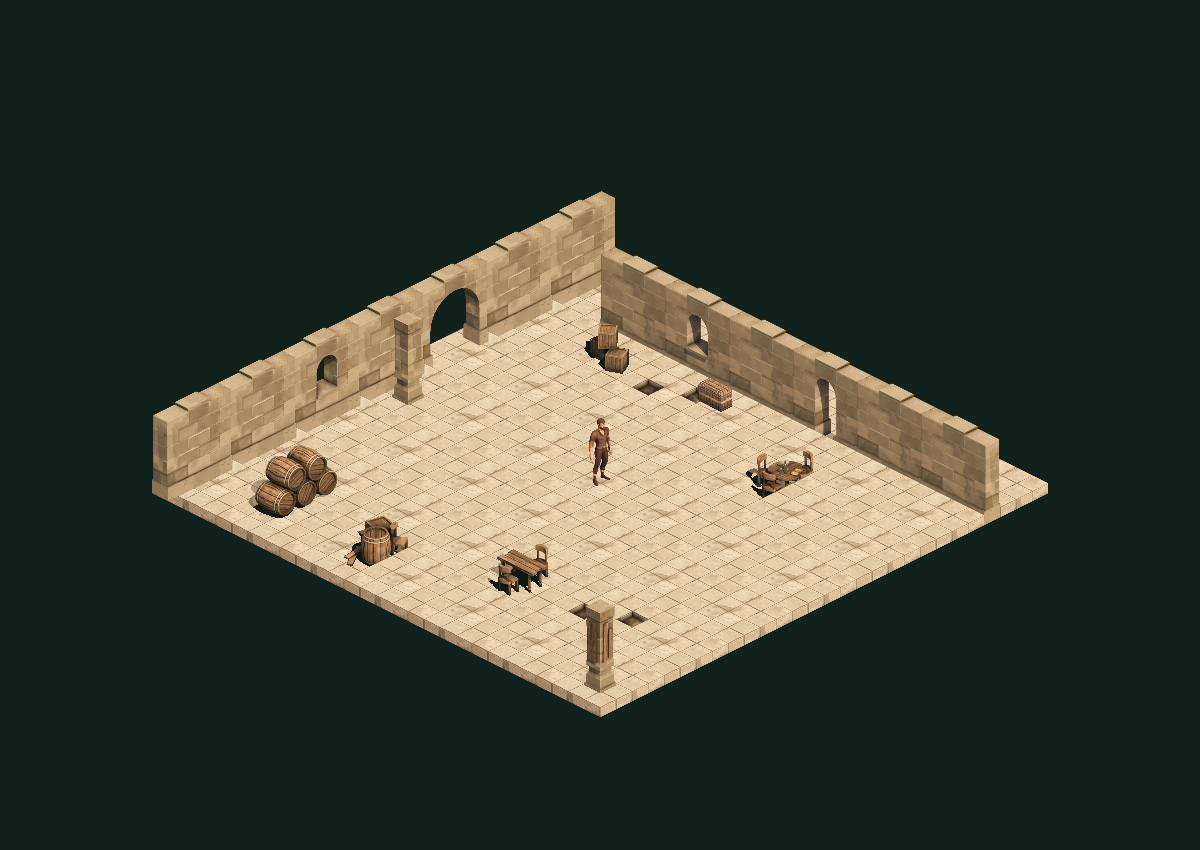
Press Play. To control the character inside the map editor, enable the keyboard input button in the top toolbar. W/Up moves up-right along X+, D/Right moves down-right along Z+, and S/A reverse those directions. Walk around the tables and barrels and behind the walls to check sorting. Inspect a window or archway: its transparent pixels reveal what is behind it.
The project embeds the imported art; the original download folder is not needed to open or play it. The Kenney / Dungeon collection contains 72 assets with four views each. Kenney / Character contains the walk/idle asset and the retained pickup clip. The starter does not currently trigger the pickup action.
Add the same pack yourself
- Choose New 2D Iso Project in the New Project dialog. The editor and player cameras are already set to 2D Iso, with movement along its grid.
- Open the Add menu below the project tree and choose Add Tiles….
- Set Source to Separate images, Layout to 2D Iso, and Name to Kenney / Dungeon.
- Click Choose Images… and select all 288 PNGs in the pack's Isometric folder. Do not mix in Angle: it uses a different camera projection.
- Enter Ground-cell width = 256. The ground-cell height is automatically 128, not 512. The PNG canvas is 256×512 because tall objects need space above the ground cell. Separate images retain their full canvases.
- In Advanced, keep Auto from file names, automatic anchors (−1), and Group directions and animation. Set After loading to Add All as Collection, then click that button. The new collection opens in the tile picker, and the source remains available in the project tree.
- Repeat for all 168 PNGs in Characters/Male, naming the collection Kenney / Character.
- Select Male, open Collections → Iso Sprite Settings…, and set Anchor X = 128, Anchor Y = 476. This pack's feet need an offset relative to its thick floor art. Apply and save.
Add Tiles… creates new tiles from images. Import → Import Tileset…
loads previously saved Eldiron assets (.eldiron_tileset or .eldiron_tiles).
The tile picker's Collections menu can export the new collection for reuse.
Loading a source or adding everything at once is one undo step. Canceling the
dialog creates no assets.
Choose all tiles or select frames
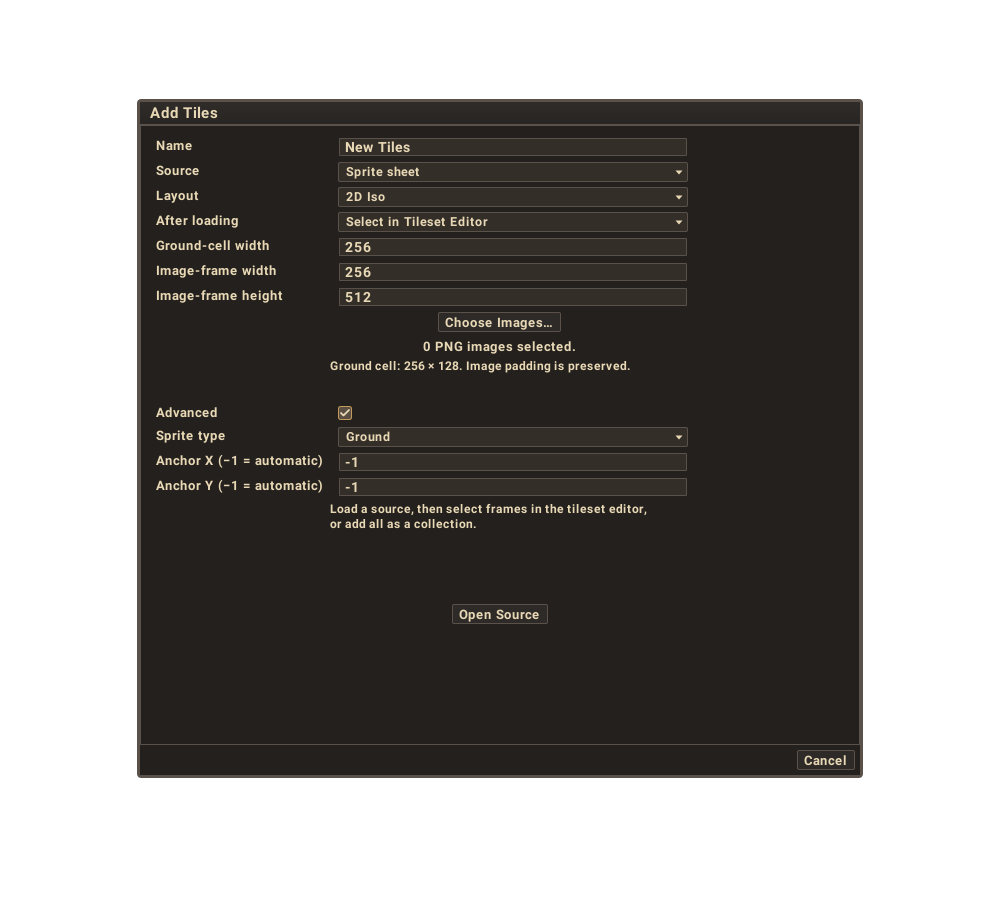
After loading offers two workflows for both sprite sheets and separate PNGs:
- Select in Tileset Editor (the default): open the source without adding anything to the tile picker. Select the cells you want, choose Single Tiles or Animation, and click Add Selected. Animation adds one tile whose frames follow the selection preview order. Unselected frames stay in the source and can be added later.
- Add All as Collection: add every nonempty frame directly to a named picker collection. Named iso directions and walk/idle clips are grouped when enabled. The source is retained so you can return to it and select animations later.
Direction grouping is separate from assembling a generic animation. Single Tiles honors the enabled filename conventions; Animation combines the chosen frames into one clip. For an eight-direction walk/idle character, select all its named frames in Single Tiles mode with grouping enabled.
Animation speed belongs to the resulting sprite, independently of the game's frame rate. Iso Sprite Settings… shows Animation speed (frames/s) only for animated sprites. Sprite lighting is also an asset setting; neither control is needed in the Add Tiles dialog.
Selecting a tile prepares it for placement. Its size, pivot and lighting remain editable through Collections → Iso Sprite Settings…. The full original canvas and pixel colors are retained; only picker thumbnails crop empty margins. Creation and settings changes can be undone.
Size, padding and anchors
Ground-cell width is the width of one ground diamond, not the width of every prop and not the PNG's height. At width 256, the diamond is 256×128 and each world unit uses a 128-pixel horizontal projection step. Changing this width changes the asset's world scale without resampling its stored pixels.
An anchor is the image pixel placed at the map position. It is measured
from the PNG's top-left corner, including transparent padding. Larger Anchor Y
moves the image upward relative to that position. A common padded-canvas
convention is (image width / 2, image height − ground-cell width / 4); automatic placement
uses that convention. For Kenney's 256×512 canvases this is (128,448).
Other packs may use different pivots: check their supplied layout and adjust
these controls instead of trimming or shifting the source PNGs.
Directions and animation
Files named stoneWall_E.png, _N.png, _W.png and _S.png become one
asset. Eldiron uses E, N, W, S as successive quarter turns for this pack.
Import all four views together, or one standalone view. An incomplete group
is rejected with a message before any assets are added.
Character files such as Male_0_Run0.png use the pack's numbered direction
convention. Directions 0–7 are mapped to the iso grid; Run frames and Idle0
are grouped for automatic walk/idle selection. Other complete clips, such as
Pickup, are retained as separate directional assets. All views and frames of
an asset must have the same canvas size. This naming convention is supported
by this importer; it is not a claim that arbitrary sprite-sheet layouts are
recognized automatically. For independent views, disable Group directions
and animation.
Sprite sheets
The same Add Tiles… dialog supports Sprite sheet with either 2D or 2D Iso. Choose one PNG, enter the width and height of each image frame, and choose what to do After loading. Selection mode keeps the familiar sheet selection workflow, including Animation. Add All creates the collection immediately; completely transparent frames are skipped. The sheet dimensions must be exact multiples of the frame dimensions, with no extra margins or gaps.
In 2D Iso, image-frame size and ground-cell size are independent. A sheet of 256×512 wall frames can still use a 256×128 ground cell. The initial frame size follows ground-cell width (and width / 2 for iso); override it for tall or padded frames. Slicing does not trim the frame or generate missing directions. For direction-aware walk/idle animation, use separate, conventionally named PNGs.
2D images are added without iso metadata. Both source types use the same selection and animation controls. Separate PNGs are arranged for browsing while retaining each original canvas and file name. Older saved sheet assets still open in their existing sheet editor when imported.
Export a source from the project tree as .eldiron_tileset to retain the source
and its frame configuration. Export a picker collection as .eldiron_tiles to
reuse its selected tiles and animations. Import Tileset… accepts both.
Place and turn tiles
Select a ground asset such as stone from the collection, choose Rect, and paint individual cells or a rectangle. Native bitmap floors stay sprites; they are not treated as flat MZ texture pages. Auto recognizes the ground names used by this pack. For a different pack, choose Ground during creation or in the selected tile's settings. Use Object for walls and props.
With Rect active, , and . turn the brush by 90 degrees. The on-map turn buttons do the same. The four source images provide the different views; a single-view asset cannot invent a missing side.
The Blocking tile metadata controls collision. The importer supplies name-based suggestions for familiar walls and props; inspect these when using a different pack. A sprite's transparent outline is not a collision mesh. Use editable map sectors for the physical footprint of a wall or object. Doorways must leave a gap in the blocking geometry as well as in the artwork.
Draw named areas for commands
The Vertex, Linedef / Edge, and Sector / Face tools also work in 2D Iso, with the scene fully rendered behind their editing guides.
- Select Linedef / Edge and click each corner of your area. The current segment previews in iso. Click the starting vertex again to close the polygon and create a sector.
- Select Sector / Face, click inside the area, and enter its Name in
the Edit Sector action. The named area appears in the region tree and
can be used by commands such as
goto("Meeting place", 1.0). - Use Vertex to move individual corners, Linedef / Edge to move edges, or Sector / Face to move the whole area. Drag on empty space for a screen-aligned box selection. These edits use normal map undo/redo.
The guides and snapping follow the shared terrain, so areas can be drawn over hills. Geometry guides appear while editing sectors and their boundaries; ordinary Rect placement keeps the scene view clear of unselected boundaries. Hidden tile-placement footprints are excluded from geometry picking. A named area needs no tile or MZ asset: leave it untextured if it is only a destination or gameplay region.
Sector height and the construction plane
Edit Sector → floor_height (Floor / tile height) is the selected sector's floor or tile-placement
altitude, in world units. Walkable top makes that surface support the player,
which is useful for steps and upper floors. For an untextured named area, height
can specify an upstairs destination for commands. It does not sculpt the shared
terrain or move other sectors, trees, or buildings. A textured sector covering
the whole map naturally has a floor covering the whole map.
The separate Rect placement Top height control sets the editor's construction plane for painting and picking at an elevation. Changing a sector's height leaves that plane and its grid in place; the selected sector outline follows its own height. Use the Terrain brush to raise or lower continuous ground, or enable Shape Terrain on a linedef or sector for an editable corridor, plateau or hill.
Selected and hovered geometry uses the same purple as ordinary 2D; unselected geometry is white and the snapped cursor is yellow.
Lighting, shadows and terrain limits
For sun colours, night ambient levels and soft local shadows, see Game Configuration: 2D Isometric Lighting.
Preserve original artwork keeps the supplied colors and baked shading. It is the default for ordinary PNG art. World lighting tint lets the live sun/ambient/local-light color affect the artwork, but cannot recover the individual face normals from a color image. Eldiron does not invent mesh geometry or accurate mesh shadows from a sprite silhouette.
MZ assets with surface data continue to use live surface lighting. Sculpted terrain also uses its MZ roughness, metallic and emission channels, including blended materials. A nonmetallic rock with moderate roughness can catch subtle sun or local-light highlights without painting them into the texture.
Both asset types share the iso scene and depth ordering; supporting ordinary PNGs does not require removing the MZ rendering path.
This starter tests flat bitmap terrain and sprite sorting. A thick stone tile or a painted staircase does not by itself define a walkable slope. Static bitmap tiles also do not bend into a smooth hill. Use the shared terrain and terrain materials for continuous sculpted ground, with separately authored walkable heights or mesh parts for stairs and platforms.
Artwork and rebuilding
Artwork is by Kenney, distributed as Dungeon Pack (2.3) under CC0.
The original notice is preserved in
starters/assets/kenney-isometric-dungeon/License.txt.
The assets in the starter were imported through Creator's regular dialog and saved as a project. The layout helper accepts that saved import result; it does not read PNG files or secretly configure import metadata:
cargo run -p eldiron-shared --release --example kenney_iso_starter -- \
  generated/kenney-iso/Imported.eldiron \
  starters/projects/KenneyIsoDungeon.eldiron \
  generated/kenney-iso
The final argument produces native play/editor captures and verifies a server
movement step; it needs a working GPU. Omit it to assemble the project without
rendering. Keep intermediate imports, app bundles, logs and captures under
generated/, which is ignored by Git. The published starter and its preview
are intentional example assets.