Overview
This chapter and its sub-sections describe the tools available in Eldiron Creator.
Map Tools Specifics
Some tools are specifically designed for map editing and display a common HUD. These include:
- Object Tool
- Vertex Tool
- Linedef / Edge Tool
- Sector / Face Tool
- Rect Tool
- Prefab Tool
- 3D Paint Tool
The tool strip also contains mode toggles below the main map tools:
- Authoring
- Text Play
- Palette Tool
Terminology
- Geometry Objects: Editable 3D objects made from vertices and faces (edited via the Object Tool).
- Vertices: Points that define the corners of 2D map geometry or 3D objects (edited via the Vertex Tool).
- Linedefs / Edges: Lines that connect vertices in 2D, edges on 3D objects, or face-local 3D surface lines for detail/cutout actions (edited via the Linedef / Edge Tool).
- Sectors: Areas enclosed by edges in 2D, or faces on 3D objects (edited via the Sector / Face Tool).
Navigation
Navigation depends on the active camera:
- Physical mouse on every platform: the existing wheel, right-drag, modifier-drag, and arrow-key controls remain unchanged.
- macOS trackpad in Orbit: two-finger scroll pans, pinch zooms, and primary click-drag on empty space or the ViewCube orbits.
Command+ two-finger scroll is a zoom fallback. - macOS trackpad in Iso: two-finger scroll pans and pinch zooms.
- First Person:
WASDmoves whenever the viewport is focused; hold right mouse to look or pressSpaceto toggle touchpad look. First Person does not pan. - ViewCube in Orbit: click a visible face to align the camera to that axis.
- Mini-map: click the mini-map in the Region section to jump to a location.
See Camera Actions for the complete per-camera controls.
HUD Overview
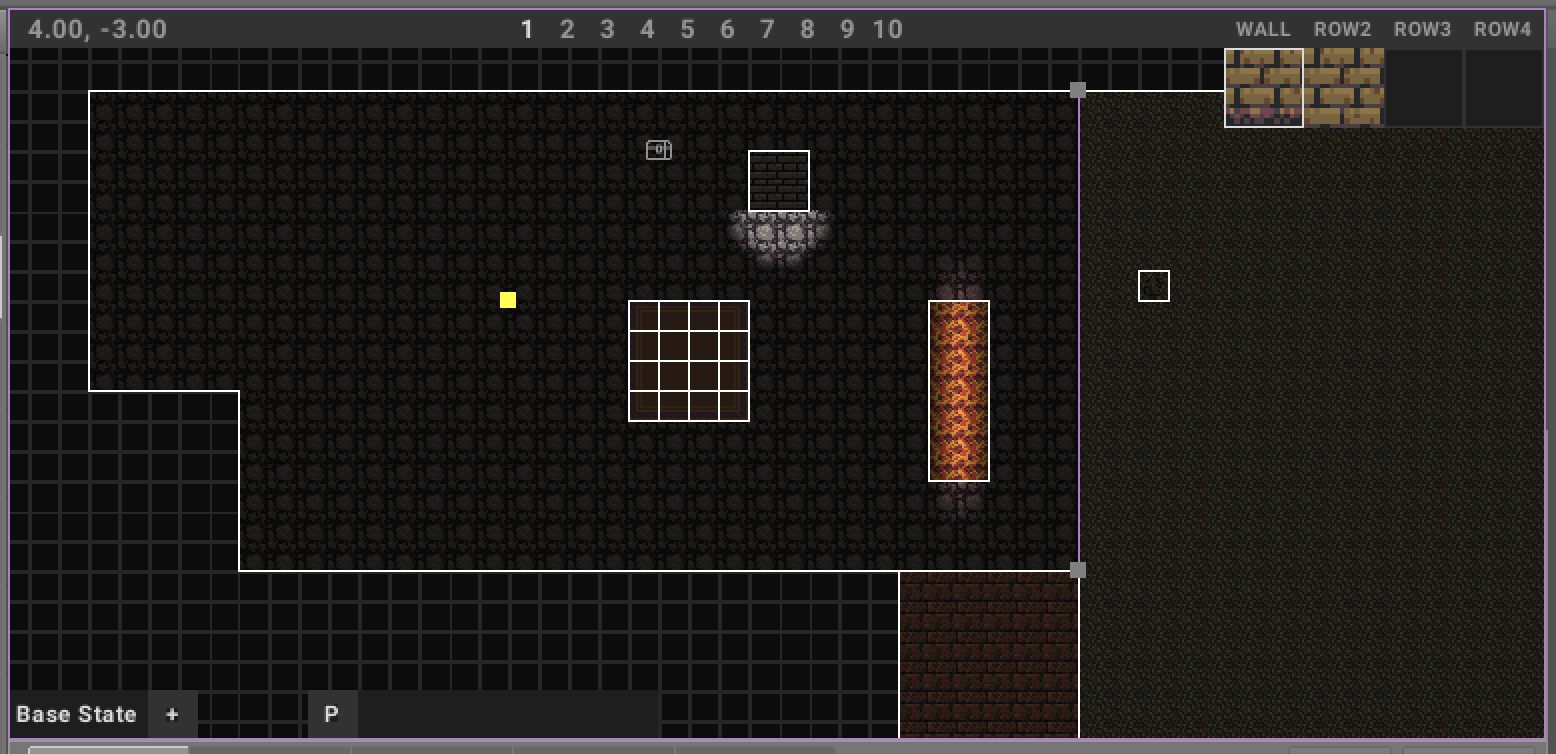
- The upper-left corner of the HUD shows the current map position. In 3D views it falls back to the selected geometry position when the cursor is not hovering geometry and displays enough decimal precision for the smallest grid snap steps.
- The numbers 1 ... 6 represent grid snap steps:
- 1 = one world unit
- 2 = half a world unit
- 3 = one quarter of a world unit
- 4 = one eighth of a world unit
- 5 = one sixteenth of a world unit
- 6 = one thirty-second of a world unit
- In 3D views, the HUD keeps these shortcut labels compact and shows the active snap step beside them. The , / . shortcuts step through the same snap subdivisions.
- Smaller snap steps help create detailed maps, while larger snap steps are useful for general layouts.
- In 3D Object mode, the HUD also contains
MOVE / SIZEcontrols for the active object gizmo.
Keyboard Shortcuts
When the map view has focus, you can use number keys (1-6) on your keyboard to quickly switch between grid snap steps, instead of clicking on the HUD.
In 3D geometry views you can also use:
O: Object ToolV: Vertex ToolE: Linedef / Edge ToolF: Sector / Face ToolB: one-shot Box Select in Orbit mode; Prefab Tool in Iso and First PersonM: Move object gizmoS: Size object gizmo
These 3D tool shortcuts are resolved contextually, so in-tool commands such as vertex fill (F), edge-loop selection (L), object rotation (R), and tile application (T) keep working when their matching geometry is selected. Defaults can be changed from Game / Shortcuts.
The Game / Shortcuts document stores overrides by stable action id:
[shortcuts]
"selection.box" = "B"
"tool.object" = "O"
"tool.vertex" = "V"
"tool.edge" = "E"
"tool.face" = "F"
For direct 3D geometry editing shortcuts, see Object Tool.
Tile Icons And Geometry Modes
The icons in the upper-right corner of the HUD are tool-specific and allow you to assign tiles to the selected geometry using the Apply and Remove buttons.
With the Palette Tool, the lower picker area shows the Palette dock instead:
- a fixed Ruleset Palette view
- an editable Art Palette board
- material and finish selectors for Art Palette entries
Apply ColorandClearactions for palette-based assignment
With the 3D Paint Tool, the lower picker area shows the 3D Paint dock instead:
- visual brush presets
- draw/erase/pick and Surface/No Clip controls
- Art Palette color slots
- material, finish, shape, and pattern settings for surface-space paint strokes
With the Prefab Tool, the lower picker area shows the Prefabs dock instead:
- rendered previews for project Prefabs and built-in construction stamps
- Place / Replace / Erase operation controls
- Clean / Damaged stamping controls
- Line / Rect drag-stamping controls
- compact selected-asset state and shortcut guidance
- practical stamps such as floor+wall, floor+corner, floor+doorway, stairs, ceilings, faceted columns, and solids
Direct 3D Geometry Editing
The direct 3D path uses editable geometry objects as the main construction model.
In 3D views:
- Object Tool selects whole 3D geometry objects.
- Vertex Tool selects object vertices.
- Linedef / Edge Tool selects object edges and draws face-local surface lines for ridges, grooves, and cutouts.
- Sector / Face Tool selects object faces.
This keeps the familiar 2D tool vocabulary while changing the 3D behavior to direct object, face, edge, and vertex editing.
The Wall Tool also provides Surface mode for fireplaces, forge beds, raised platforms, and similar inserts. Hover inside a region enclosed by connected wall spans to preview the fitted surface, then click to create it. Independently drawn wall runs whose endpoints touch the middle of existing straight walls are resolved into fitted junctions, so a curved forge front can divide a larger room into its own surface region. Elevation uses 0.25-unit steps; thickness and wall clearance remain independently adjustable, and the Surface HUD material slot accepts the same colors and tiles as other geometry. Because the fitted boundary stores its source wall spans, it follows later node moves and curve changes; Delete removes the selected surface.
In Surface mode, press F to create or select a floor and C to create or select a ceiling. A closed wall boundary can own one of each independently. Elevation and thickness remain separate for each surface; older untyped surfaces load as floors. Press H to hide or show the active surface kind in the editor preview, or V to show both kinds. These preview controls do not change game visibility.
In Build mode, choose Ring, click the center, and drag the radius to create a closed four-span curved wall for wells, round rooms, or towers. Releasing finishes the ring and returns Build to Line, keeping the normal Wall panel compact. The generated nodes and spans remain editable like any other connected wall.
Authoring Mode
The tool strip also contains an Authoring toggle. Clicking it opens the Authoring dock; while enabled, contexts that would normally show Tiles show Authoring instead.
Authoring mode lets you enter descriptive TOML metadata for sectors, linedefs, geometry objects, linked prefabs, and character and item templates. Gameplay configuration and logic use Entity and Behavior Nodes.
For the full workflow and metadata format, see Authoring.
Text Play
The Text Play toggle offers typed gameplay commands in the Game view, or in a dock while editing a running region. Input intents come from the character's Entity Nodes, including instance overrides. Prompt answers appear as numbered choices; enter the number and press Return, or enter 0 to cancel. Expired choices and choices outside conversation range cannot be selected.
Authored sectors and connections provide room descriptions and named exits. Scenes with only Wall Tool geometry show the region name and nearby characters and items instead; inventory, stats and targeted commands still work. This proximity view does not infer room boundaries or named exits from walls. Add authored sectors and connections for room-to-room text navigation.
Palette Mode
The Palette Tool is another bottom-row mode toggle. When enabled, contexts that would normally show the Tiles dock keep the Palette dock visible instead.
Palette mode is used for:
- editing Art Palette entries
- changing palette material and finish metadata
- applying palette-index sources to geometry
For the full workflow, see Palette Tool.
Prefabs And Block Building
The Prefab Tool browses and places reusable linked project Prefabs and also retains the built-in construction-stamp workflow for rooms, corridors, dungeon layouts, houses, and blockouts.
Project Prefabs are UUID-backed shared sources: editing the source updates linked instances, while each placement keeps its own transform and runtime state. Built-in construction stamps still use the dedicated block grid, click/line/rectangle placement, whole-instance replace/erase, clean or damaged variants, rotation, stack levels, and component-aware sizing.
For the full workflow, see Prefab Tool.
3D Paint Mode
The 3D Paint Tool paints persistent surface-space layers directly onto 3D region geometry. It is meant for organic detail such as moss, cracks, grass, dirt, puddles, generated brick patterns, stamps, and color-only touchups. The paint stays attached to its surface in isometric, orbit, and first-person views; it is not available in the 2D map view.
For the full workflow, see 3D Paint Tool.