Project Tree
The project tree is available on the Project page of the right sidebar in Eldiron Creator and contains all editable content of your game. Use the + and - buttons at the bottom of the tree to add or remove content. To the right of these buttons, the current content context is displayed together with the import and export buttons.
The compact sidebar tabs switch between the Project tree, the contextual Actions page, the Node List, Console, Debug, and Help. Console presents structured runtime output above its command entry. Debug contains live server diagnostics, automatically opens when new warnings or errors arrive, and works with the Nodes dock’s execution feedback. Help uses the same sidebar area for the ruleset-aware interactive help system. Use Tab and Shift+Tab to cycle. The direct shortcuts are Ctrl/Cmd+Shift+F (Project), Ctrl/Cmd+Shift+G (Actions), Ctrl/Cmd+Shift+H (Console), Ctrl/Cmd+Shift+J (Debug), and Ctrl/Cmd+Shift+K (Help). The minimap remains visible below every page.
Selecting specific content in the project tree displays its corresponding editor dock widget. Camera shortcuts remain available as right-aligned icons beside the project tabs. After the separator, use the frame-corners control (Cmd/Ctrl + [) to open or maximize the current dock editor and the down-caret control (Cmd/Ctrl + ]) to restore the normal split.
Regions
Regions are the maps in your game which define the world, dungeons and towns.
You use the geometry tools to create geometry for the regions. Regions can be viewed using a 2D or various 3D cameras.
Each region also has its own behavior entry in the tree:
- Behavior Nodes for region events.
Region settings configure map-local rendering, including:
- region-specific palette remapping
- local fog or background overrides
Use the region graph for region events.
Characters
A character template is a reusable blueprint that defines the behavior, attributes, and appearance of a character in the game.
Use Behavior Nodes for character reactions and Entity Nodes for initial configuration, race/class selection, and player input.
You can instantiate a character template into the map of the region by simply dragging and dropping the character template into the map (Click left of the Name item and drag).
In 3D region views, the drop uses the actual surface hit position, so the instance also stores the correct y height. This makes drag-and-drop placement work correctly on stairs, elevated geometry, and lowered dungeon floors.
You can use the Entity Tool to move or delete character instances after creation.
Items
Item templates have similar functionality as characters templates but define a static or dynamic item in the game world.
Use Behavior Nodes for item reactions and Entity Nodes for initial configuration.
Each item also has Icon: On and Icon: Off rows in the tree. On is the normal/default state and contains the artwork for ordinary single-state items. Off is optional and remains empty unless the item needs a distinct inactive appearance. Do not put a single-state item's only icon in Off.
Click an icon frame in either row to open it in the Pixel Tile
Editor. The two states have independent animation
frames. Editing a resolved default creates a project-owned icon; use
Load Default in the editor to restore that state from its source. For an
item with on_tile_id or off_tile_id, the source is the tile currently
resolved by that UUID or alias; otherwise it is the active ruleset artwork or
ordinary On visual fallback. The bundled torch demonstrates both states: Off
has one frame and On has four.
You can instantiate an item template into the map of the region by simply dragging and dropping the item template into the map (Click left of the Name item and drag).
In 3D region views, the drop uses the actual surface hit position, so the instance also stores the correct y height. This makes drag-and-drop placement work correctly on stairs, elevated geometry, and lowered dungeon floors.
You can use the Entity Tool to move or delete item instances after creation.
Tilesets
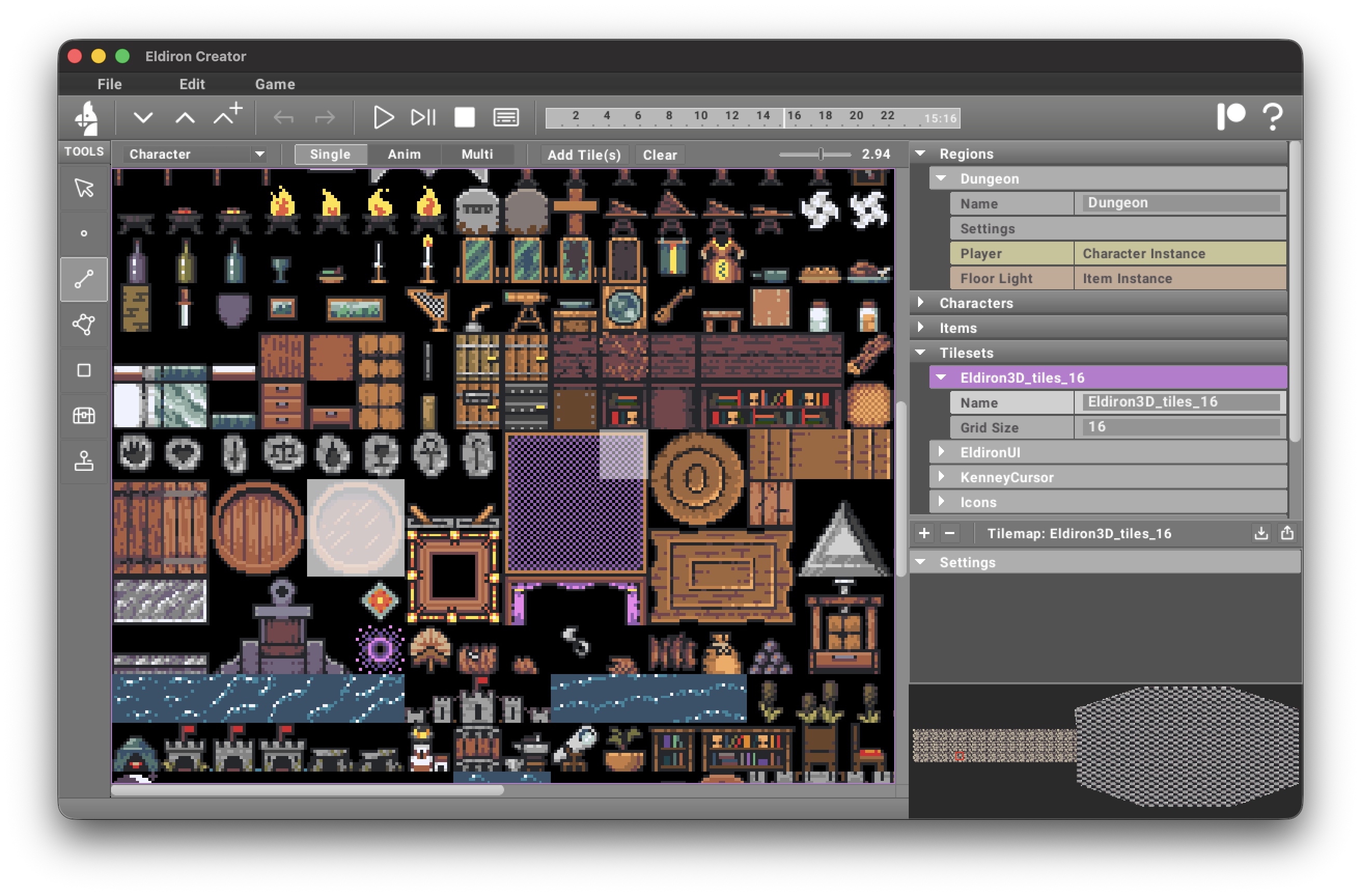
Tilesets are PNG images with grid based tiles of pixel art. After importing a tile set and applying the correct Grid Size you can select individual or multiple tiles (click and drag horizontally or vertically to select) and add them to the tile picker.
Before adding the tile(s) make sure you selected the role as needed (to be able to filter and sort tiles correctly) and you can select one of three import modes:
- Single. Add the selected tiles as individual tiles.
- Anim. Add the selected tiles as one animated tile.
- Multi. Add the selected tiles as one big tile, containing multiple tiles.
In the tile picker you can further edit and organize tile sources. The tile picker toolbar also provides Apply Tile and Clear Tile for map geometry and action material slots.
The tile picker can contain:
- single tiles
- tile groups
- node groups
Added tiles are shown with a slight gray overlay in the tileset editor, making it easy to see which files you already added. You can delete a tileset any time, already added tiles will not be affected.
Screens
Screens in Eldiron define the visible user interface of your game. Paint background decoration with the Rect tool and create Sectors and apply tiles.
See the Working with Screens chapter (coming soon).
Screen widgets can now bind character-facing UI to a party target instead of being hardcoded to the current player. This is used for things like:
- equipped hand slots for different party members
- inventory slot widgets bound to one member
- portrait buttons using a character's
portrait_tile_id - avatar preview widgets bound to
leaderorparty.N
See Widgets for the party and portrait widget settings.
Assets
Assets you added for your game will be listed here. Currently supported assets:
- TTF fonts for in-game text drawing.
- WAV and OGG audio files for music, ambience, UI sounds and effects.
Use the + button in the project tree to add assets:
- Add Font Asset to import a font.
- Add Audio Asset to import WAV/OGG audio.
For the complete audio workflow (assets, buses, and scripting), see Audio.
Palette
Shows both palette roles used by the project:
- Ruleset Palette: fixed colors used by ruleset avatars, UI color defaults, and generated missing-art fallbacks. Authored item icon PNGs keep their own RGBA colors.
- Art Palette: editable project art colors used by tiles, drawing, palette-index geometry, tile graphs, and 3D Paint.
Use the Palette Tool to edit the Art Palette, load external palette colors, and assign Art Palette entries to geometry. Ruleset Palette changes belong in the active ruleset or project rules overrides.
Game
In the game section you can select:
- Settings. Edit your game settings and see all supported options in Game Configuration.
- World / Behavior Nodes. Edit global event-driven behavior.
- Authoring. Edit global text-adventure and authoring behavior like startup text and sector description policies, see Authoring Configuration.
- Rules. Edit project-wide gameplay rules and formulas in a TOML-based data editor, see Rules.
- Locales. Edit shared localization tables like
[en]and[de]in a TOML-based data editor, see Localization. - Audio FX. Edit generated micro sound effects in a TOML-based data editor with built-in preview, see Audio.
Use world and region graphs for their respective events. Available nodes depend on the selected graph owner.
For editing per-sector, per-linedef, per-entity, and per-item narrative metadata inside regions, see Authoring.