Tile Picker
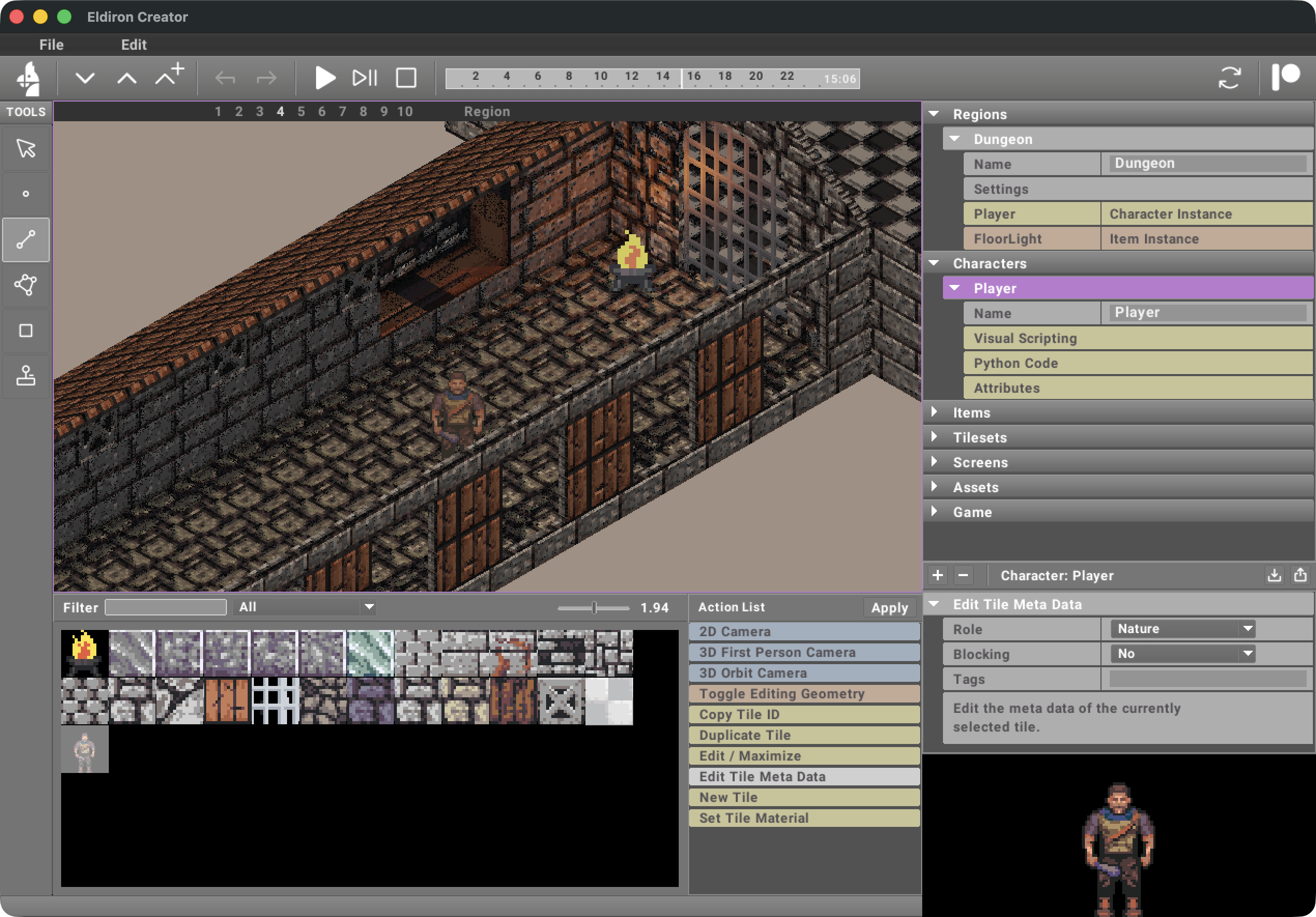
The Tile Picker dock is the main asset browser and assignment dock for map work. It is used to:
- browse project tiles, tile groups, and node groups
- organize them in collections
- preview and select the current tile source
- copy the selected tile or group UUID from the dock toolbar
- apply or clear that source on geometry
- open the pixel editor or node graph editor with the top-right dock control
For single tiles, Edit Tile Meta can assign an alias and gameplay tags. The alias identifies the visual tile anywhere a tile_id-style source is accepted, including set_tile(...); it does not trigger events. Gameplay tags describe behavior and trigger entered_tile and left_tile character events when a character crosses a painted 2D tile placement.
The currently selected source is used by Copy Tile ID, Apply Tile, and Clear Tile in the dock toolbar, and by tools such as Rect. Copy Tile ID places the quoted UUID on the system clipboard for use in settings, scripts, and other source fields.
Sources
The tile picker can show several source types:
- Tile: a single authored pixel tile
- Tile Group: an authored grouped source made of several tiles
- Node Group: a procedural grouped source generated from a tile graph
All three can be selected from the tile picker. A single tile can be applied directly, while groups can be applied as grouped surface content where supported.
Tabs And Views
The tile picker is not just one flat list anymore. It supports several views:
- Project: all project tiles and groups
- Collections: curated views of shared assets with their own board layout
- Treasury: installed reusable content
Collections are views, not copies. The same tile or group can appear in several collections, but each collection keeps its own board placement.
Entering Groups
Double-clicking a tile group opens it inside the tile picker so you can inspect its member tiles.
Inside a group:
- you can select individual member tiles
- those member selections can be applied as normal single-tile sources
- pressing
Escapeleaves the group again
Node groups are edited in the node graph editor rather than directly inside the tile picker board.
Node groups can also be used as reusable graph layers inside other node graphs. That layering workflow is described in Tile Node Graph.
Applying Sources
Apply Tile
Apply the currently selected source from the tile picker.
Behavior:
- in normal geometry editing, it assigns the selected source to the currently selected geometry/material slot
- in Region geometry, if the current action exposes HUD material slots, it assigns the selected source to the currently selected action icon slot instead
- on screens, it keeps the existing screen-specific material assignment behavior
Use this together with the HUD icon selection to decide which slot is being edited.
Clear Tile
Clear the currently selected tile/material slot.
Behavior:
- in normal geometry editing, it removes the current geometry source assignment
- in Region geometry, if the selected action exposes HUD material slots, it clears the current action icon slot instead
- on screens, it keeps the existing screen-specific material clearing behavior
Opening The Integrated Editors
The top-right Edit / Maximize Dock control (Cmd/Ctrl + [) is context-sensitive:
- if a tile is selected, Eldiron opens the pixel tile editor
- if a node group is selected, Eldiron opens the tile node graph editor
Use the adjacent Restore Dock control (Cmd/Ctrl + ]) to return to the normal editor/dock split.
See:
Authoring Mode
If Authoring mode is enabled in the tool strip, the tile picker is replaced by the Authoring dock for tile-backed map contexts. This lets you edit narrative metadata instead of tiles.